Google Minesweeper: How to Play, Controls, Difficulty Levels & Strategy (2026)
Type “minesweeper” into Google Search and press Enter. A playable Minesweeper game card appears at the top of results. Click Play, choose Easy, Medium, or Hard, and click any square to begin. Left-click reveals a square; right-click places a flag. Numbers tell you how many mines touch that square. Reveal every safe square to win — you do not need to flag every mine. No download, no account, completely free.
Google Minesweeper is exactly what you remember — numbers, logic, and that satisfying moment when a chain reaction clears half the board in one click. But if you’re new to the game, or you’ve played Windows Solitaire for years without ever understanding why the number 3 is terrifying, this guide is for you.
It covers how to open the game, what every number and symbol means, how to flag mines on desktop and mobile, what separates Easy from Hard, and the logic patterns that turn you from a guesser into a solver.
What Is Google Minesweeper?
Google Minesweeper is a fully playable version of the classic Minesweeper game embedded directly in Google Search. It runs right inside your browser tab — no app, no installation, no Google account needed, completely free.
The game offers three difficulty levels (Easy, Medium, Hard) with grids and mine counts that match the classic Beginner / Intermediate / Expert settings most people know from Windows. The rules are identical to the original: click squares to reveal them, use the numbers to deduce where the mines are, and reveal every safe square to win.
It’s been available in Google Search since approximately 2018 and is still fully active in 2026 on desktop and mobile.
How to Open Google Minesweeper
On Desktop (Chrome, Firefox, Edge, Safari)
- Open a browser and go to google.com.
- Type “minesweeper” in the search bar and press Enter.
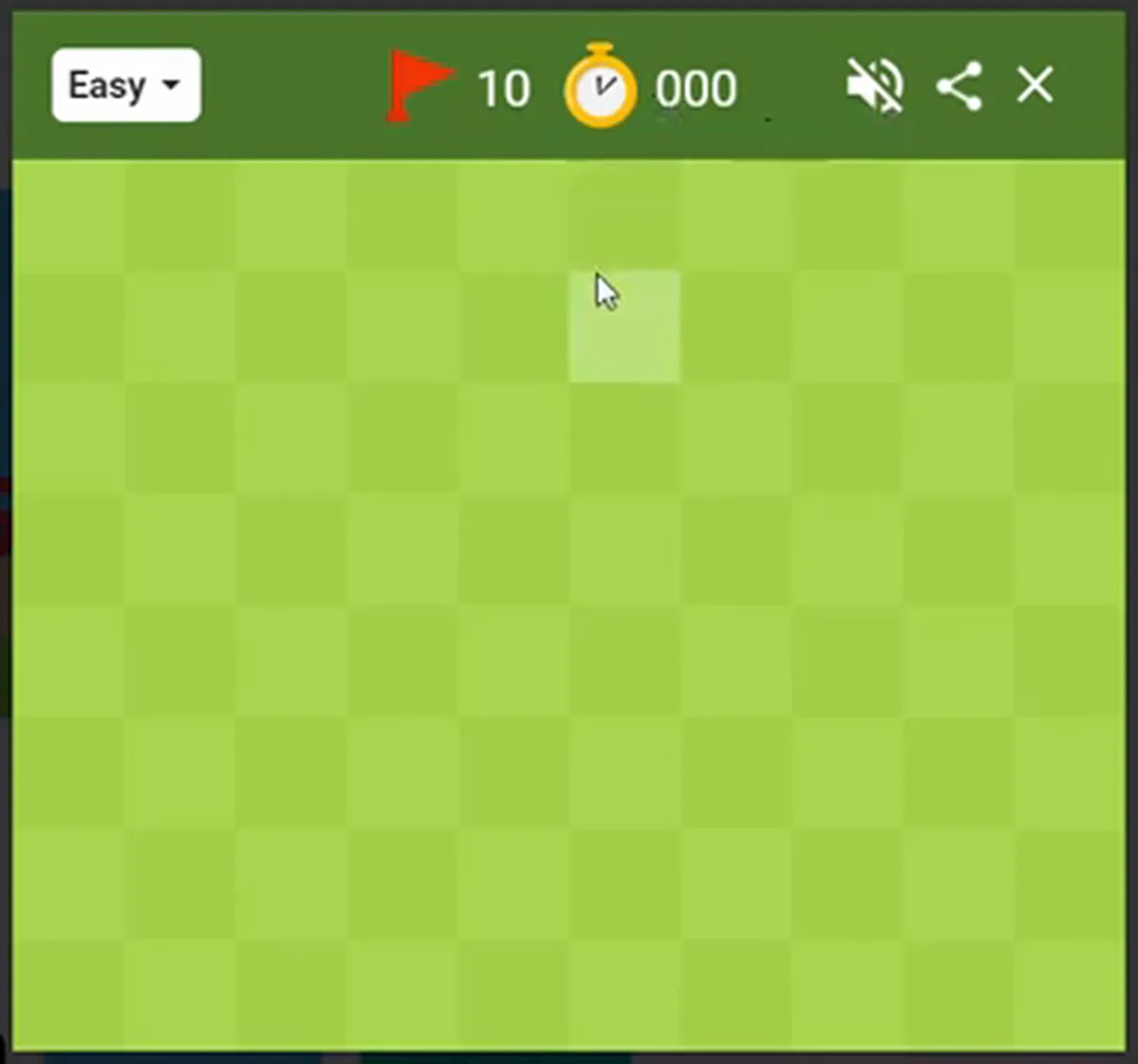
- A Minesweeper game card appears at the top of the search results.
- Click Play.
- Choose your difficulty: Easy, Medium, or Hard.
- Click any square on the board to begin. The timer starts on your first click.
Tip: If the game card doesn’t appear, make sure you’re searching exactly minesweeper with no extra words. Extensions or regional Google settings can occasionally suppress the card — try an Incognito/Private window if the game doesn’t show.
On Mobile (iOS and Android)
- Open the Google app or a mobile browser and search “minesweeper.”
- Tap the game card and select your difficulty.
- Tap a square to reveal it. The board scales to your screen.
Flagging mines on mobile works differently — see the Controls section below.
The Rules: What You’re Actually Trying to Do
The goal is simple: reveal every square on the board that doesn’t contain a mine.
That’s it. You don’t need to flag every mine. Flags are an optional tool to help you remember where mines are — but many experienced players solve entire boards without using a single flag. What wins the game is revealing all the safe squares.
You lose if you click a square that contains a mine. The board detonates and all mines are revealed.
Understanding the Board Layout
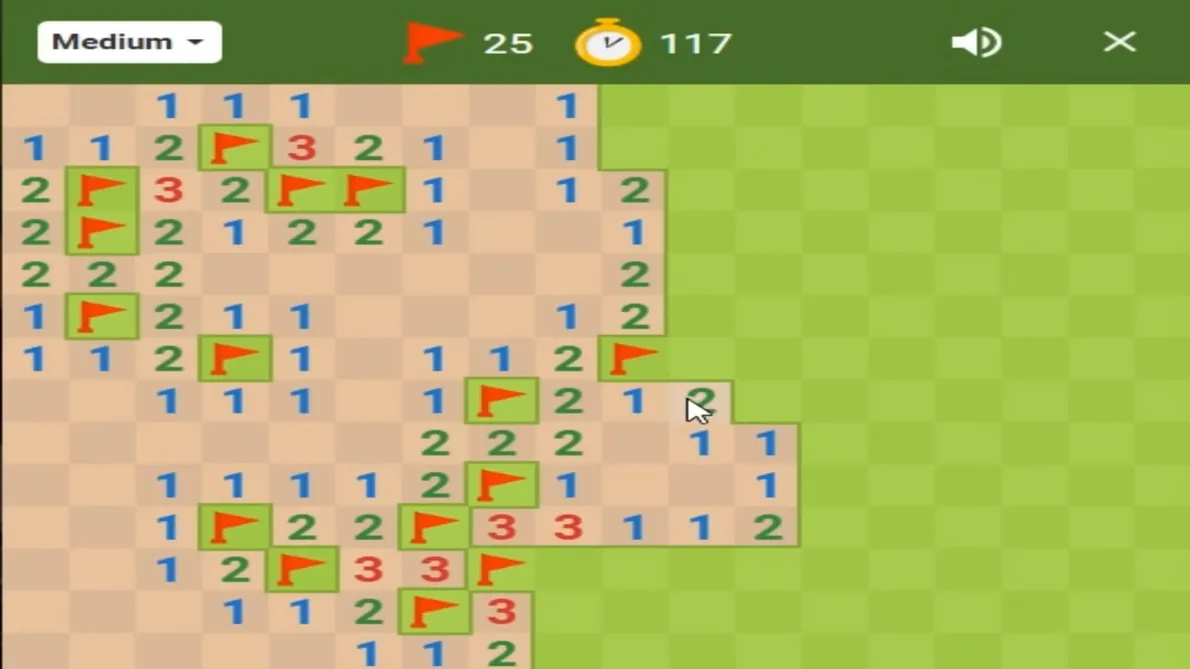
Before playing, know what you’re looking at:
- Covered squares (grey) — Unknown. Either safe or a mine. Your job is to figure out which.
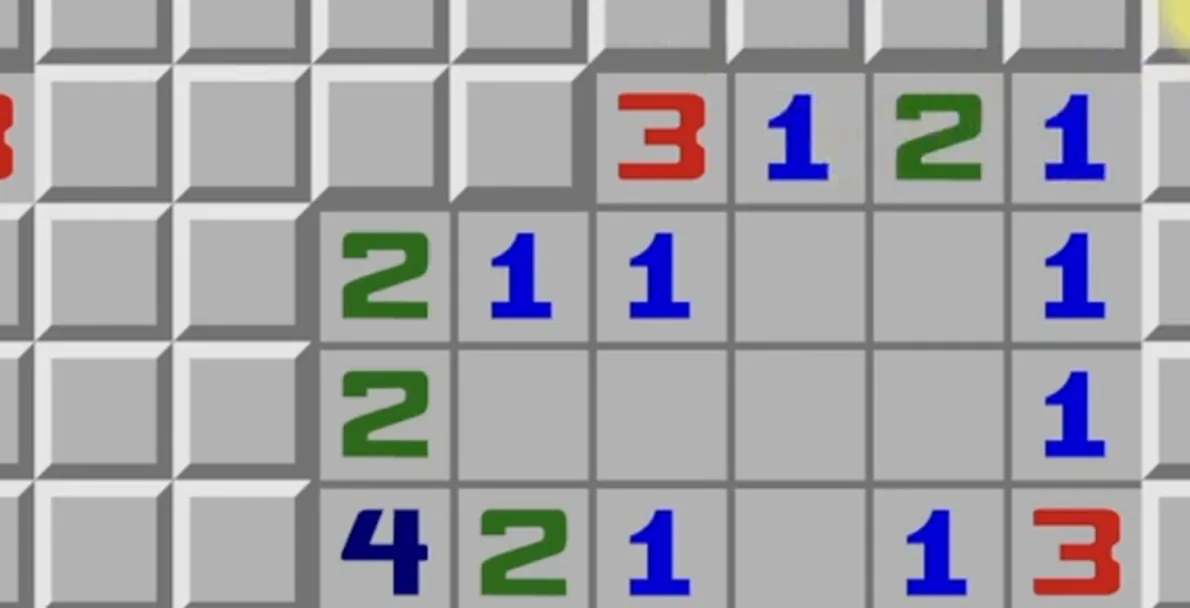
- Revealed squares with numbers — Safe. The number tells you exactly how many mines are in the 8 touching squares (horizontal, vertical, and diagonal).
- Blank revealed squares — Safe. Zero mines in all 8 surrounding squares. Clicking one of these usually triggers a chain reaction that reveals a large area.
- Flags (🚩) — Placed by you on squares you believe contain mines. Flags don’t reveal anything — they’re markers. They reduce the mine counter at the top, which tracks how many mines remain unflagged.
- Mine counter (top-left number) — Total mines minus flags placed. A negative number means you’ve placed more flags than there are mines — at least one flag is wrong.
- Timer (top-right) — Starts on your first click.
- Reset button (the smiley face) — Starts a new deal without changing difficulty.
What the Numbers Mean
The numbers are the entire logic of Minesweeper. Each number tells you how many mines exist in the eight squares immediately surrounding it — up, down, left, right, and the four diagonals.
| Number | Color (classic) | What it means |
|---|---|---|
| 1 | Blue | Exactly 1 mine in the 8 surrounding squares |
| 2 | Green | Exactly 2 mines in the 8 surrounding squares |
| 3 | Red | Exactly 3 mines in the 8 surrounding squares |
| 4 | Dark blue | Exactly 4 mines in the 8 surrounding squares |
| 5 | Maroon | Exactly 5 mines in the 8 surrounding squares |
| 6 | Teal | Exactly 6 mines in the 8 surrounding squares |
| 7 | Black | Exactly 7 mines in the 8 surrounding squares |
| 8 | Gray | All 8 surrounding squares are mines — the rarest number |
A square on the edge or corner of the board has fewer than 8 neighbors, so the same number becomes more constraining. A “1” in a corner with only 3 neighbors means 1 of those 3 is a mine — much more information than a “1” in the middle of the board.
Controls: Desktop and Mobile
| Action | Desktop (mouse) | Mobile (touch) |
|---|---|---|
| Reveal a square | Left-click | Tap |
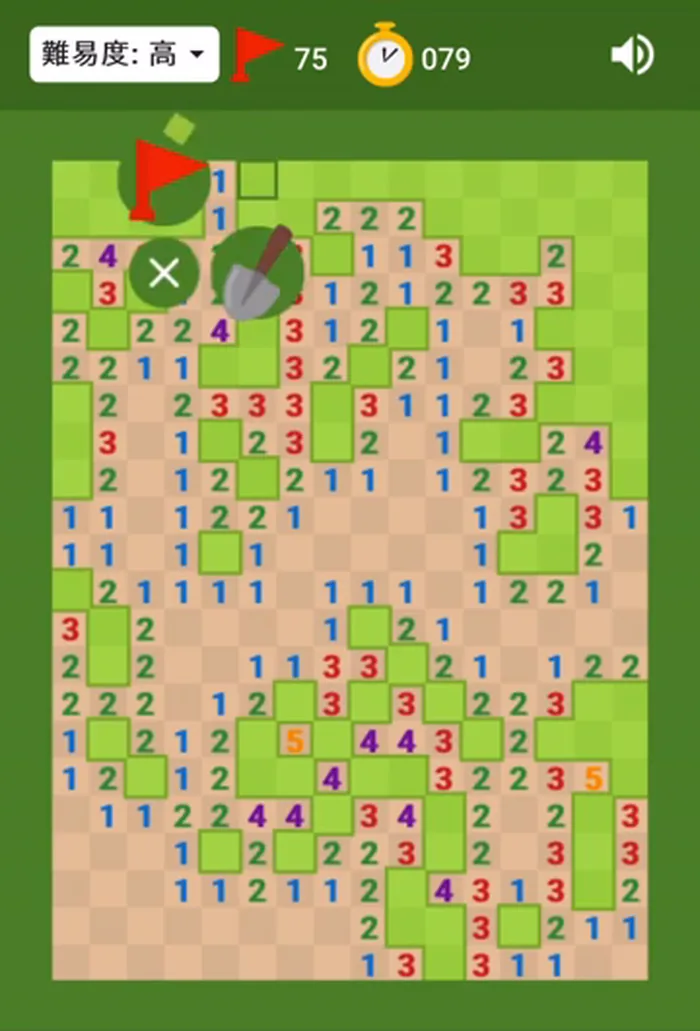
| Place/remove a flag | Right-click on the square | Long-press, OR tap the flag/shovel toggle button then tap |
| Trackpad flagging | Two-finger tap, or bottom-right trackpad click; Mac: Control+click | — |
| New game | Click the smiley face 🙂 | Tap the smiley face 🙂 |
Mobile Flagging: What to Do When Long-Press Doesn’t Work
On some mobile browsers, long-pressing a square opens a browser context menu instead of placing a flag. If that happens, look for a flag/shovel toggle button on the game interface — switching to flag mode lets you tap squares to flag them instead of reveal them. Alternatively, try the game in the Google app rather than your mobile browser, which tends to handle touch controls more reliably.
Right-Click Opens a Menu Instead of a Flag?
On desktop, make sure you’re clicking directly on a board square — not on its border or the surrounding area. If a browser extension has overridden your right-click behavior, try playing in an Incognito or Private window.
Difficulty Levels
| Level | Grid size | Mines | Best for |
|---|---|---|---|
| Easy | ~9×9 | ~10 | Learning the rules and number logic without being overwhelmed |
| Medium | ~16×16 | ~40 | Players comfortable with the basics who want more board complexity |
| Hard | ~30×16 | ~99 | Experienced players; wide board with dense mines requires tracking many patterns at once |
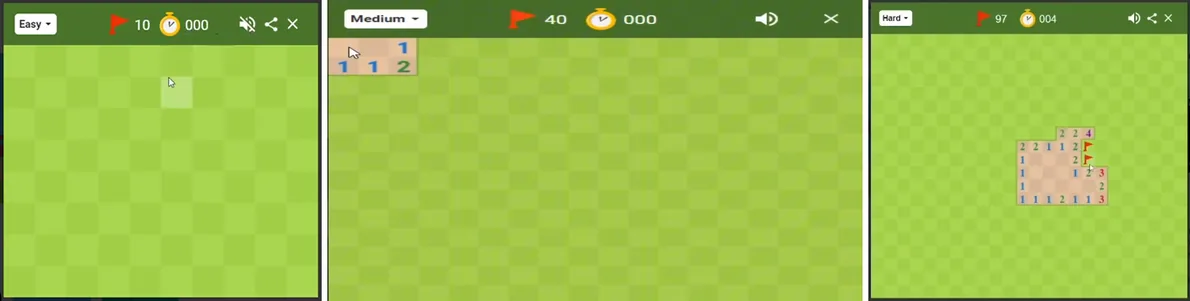
The grid sizes and mine counts match the classic Windows Minesweeper “Beginner / Intermediate / Expert” presets that players have known since the 1990s. Google’s Search card labels them Easy / Medium / Hard.
Starting advice: Easy is not embarrassing to play. It’s genuinely how the logic patterns click into place — you see the 1-1-1 pattern, you understand what’s happening, you then immediately recognize it on a Medium board. Most competent Minesweeper players spent real time on Easy before moving up.
Is the First Click Always Safe?
In Google Minesweeper, your first click is typically guaranteed to be safe and usually opens a larger area by chain reaction. This is a deliberate design choice — the game waits for your first click before finalizing mine placement, so you’re not placed on a mine immediately.
Treat it as reliable behavior, but not a published guarantee. If you’re deep in a game and hitting a 50/50 situation, that’s the real risk point — not click one.
Strategy: Eight Patterns That Win Real Games
Minesweeper is primarily a logic game. The vast majority of boards — especially on Easy and Medium — can be solved almost entirely by deduction. Here’s how to think through it:
1. Start with a few clicks, then switch to logic
Your opening clicks are exploratory. Try different areas of the board (corners and edges reveal slightly more per click because of reduced neighbor counts). Once numbers appear, stop clicking randomly and start reading the board.
2. The “all covered neighbors are mines” rule
If a numbered square has exactly as many covered (unrevealed) neighbors as its number, all those neighbors are mines. Example: a “3” with only 3 covered neighbors — all three are mines. Flag them all and move on.
3. The “number is satisfied” rule
If a numbered square already has as many flags next to it as its number, all its other covered neighbors are safe. Reveal them immediately. This is how chain reactions start.
4. Subtract known mines from nearby numbers
Consider two adjacent numbers. A “2” with one flagged mine next to it effectively acts like a “1” for its remaining neighbors. If that remaining “1” overlaps with a “1” next to it that shares all the same covered neighbors, both mines must come from that shared set — and you can work out which specific squares are safe.
5. Learn the 1-2-1 pattern
Three squares in a row: 1, 2, 1. If they’re all on the edge of the revealed area, the mine is under each of the outer two numbers — and the three squares directly in front of the “2” are all safe. This is one of the most common patterns you’ll see.
6. The 1-2-2-1 pattern
Similar to 1-2-1 but with four numbers in a line. The two mines are directly in front of the two “2”s — the two squares in front of the “1”s are safe. Recognizing this saves enormous amounts of guessing on medium and hard boards.
7. Watch the mine counter late in the game
When you’re running low on unrevealed squares, the total mine count becomes powerful information. If only 3 covered squares remain and the counter says 1 mine, two of those three are definitely safe — pick the ones with the most constraining number neighbors.
8. When you must guess, guess smart
True 50/50 situations do occur in Minesweeper — some board configurations cannot be solved by logic alone. When you’re genuinely stuck between two equal options, choose the square that, if safe, opens more area. And choose the one that, if a mine, ends a run — not the start.
Does Google Minesweeper Support Chording?
Chording is a technique in classic Minesweeper where you click a number that already has all its mines flagged, instantly revealing all remaining covered neighbors. In desktop Windows Minesweeper, it’s how fast players clear boards in seconds.
In Google’s Search version, chording support is inconsistent — some players report it works, others find it doesn’t behave as expected. Don’t rely on chording as a primary technique in Google’s version. Use regular left-click reveals instead. This is one real difference between Google Minesweeper and the Windows classic.
Can Every Game Be Won Without Guessing?
No. Some Minesweeper configurations cannot be solved by logic alone — they end in a “true 50/50” where two squares are equally likely to be a mine, and no surrounding number provides a way to distinguish them. This is not a design flaw; it’s an inherent property of random mine placement.
What this means practically: if you’ve applied all the logic you know and still can’t determine which of two squares is the mine, you may genuinely be at a guess point. Pick one and accept the outcome. Even expert Minesweeper players hit unresolvable situations — the skill is minimizing how often you get there and making the best possible guess when you do.
Does Google Save My Best Times?
No. Google Minesweeper does not maintain a persistent leaderboard or account-based record of your times. When you close the tab, your time is gone. If you want to track personal bests, record them manually — or use a dedicated Minesweeper site that offers account-based stats.
Troubleshooting Google Minesweeper
- Game card doesn’t appear: Search exactly minesweeper with no extra words. Try an Incognito window. If still missing, try a different browser.
- Right-click opens a menu, not a flag: Click precisely on the square (not its border). Try an Incognito window to disable extensions.
- Long-press flags nothing on mobile: Look for the flag/shovel toggle button on the game interface and switch modes. Try the Google app instead of your mobile browser.
- Board looks too small: On desktop, try zooming in (Ctrl + or Cmd +). On mobile, the board scales automatically but can be tight on smaller screens — the full-screen option helps.
- Need a bigger game: Google’s Search card offers three fixed sizes. For custom grids (e.g., 30×24 with custom mine count), dedicated Minesweeper sites like minesweeper.online offer more options.
More Google Easter Eggs and Games
Minesweeper is one of several games embedded directly in Google Search. These are worth knowing:
- Google Solitaire — Classic Klondike Solitaire with Easy and Hard mode. Unlimited undo, no download.
- Google Snake — Snake game with multiple modes, settings and community mods.
- Google Dinosaur Game — The offline T-Rex runner. Also accessible at chrome://dino any time.
- Google Pac-Man — The 2010 Doodle, still playable. The maze spells “GOOGLE.”
- See all 18 Google Easter eggs →
Frequently Asked Questions: Google Minesweeper
How do I play Minesweeper on Google?
Type “minesweeper” into Google Search and press Enter. A Minesweeper game card appears at the top of results — click Play, choose Easy, Medium or Hard, and click any square to begin. No download, no account, no cost.
What do the numbers mean in Minesweeper?
Each number tells you how many mines exist in the eight squares immediately surrounding it — up, down, left, right, and the four diagonals. A “1” means exactly one neighboring square contains a mine. An “8” (rare) means all eight neighbors are mines.
Do you have to flag every mine to win?
No. The win condition is revealing every safe square — not flagging every mine. Flags are optional markers that help you keep track of suspected mines. Many experienced players solve entire boards without placing a single flag. You win the moment the last safe square is revealed.
What are the difficulty levels in Google Minesweeper?
Google Minesweeper has three difficulties: Easy (approximately 9×9 grid with 10 mines), Medium (approximately 16×16 with 40 mines), and Hard (approximately 30×16 with 99 mines). These match the classic Beginner/Intermediate/Expert sizes. There is no custom mode in the Google Search card version.
Is the first click always safe?
In Google Minesweeper, the first click is typically safe — the game usually finalizes mine placement after you click, so your opening move won’t detonate a mine. This is standard behavior in modern versions of Minesweeper. Treat it as reliable, though not a formally published guarantee.
How do I flag a mine on a phone?
Long-press a square to place a flag on most touch devices. If long-pressing opens your browser’s context menu instead, look for a flag/shovel toggle button on the game interface — switching to flag mode lets you tap to flag rather than reveal. The Google app tends to handle this more reliably than third-party mobile browsers.
Can every game of Minesweeper be solved without guessing?
No. Some Minesweeper boards contain “true 50/50” situations where two squares are equally likely to be a mine and no surrounding number can distinguish them. This is inherent to random mine placement, not a flaw in Google’s version. Most skilled players solve the vast majority of Easy and Medium boards by logic, but genuine guess situations do occur, especially on Hard.
Does Google Minesweeper save my best times?
No. Google’s in-Search Minesweeper does not maintain a persistent leaderboard or account-based record of your times. When you close the tab or navigate away, your time is lost. Record personal bests manually or use a dedicated Minesweeper site with account features if stats matter to you.
Is Google Minesweeper the same as Windows Minesweeper?
The core rules are the same — numbers, flags, three grid sizes, win by revealing all safe squares. The differences: Google’s version runs in the browser (no installation), does not reliably support chording (the technique of clicking a satisfied number to auto-clear neighbors), and doesn’t save times or records. The visual style is also different from classic Windows Minesweeper.
Is Google Minesweeper free?
Yes, completely free. No account, no subscription, no in-app purchases. Just search “minesweeper” in Google and play.
Discover More Google Easter Eggs
Minesweeper is one of 18 Easter eggs and hidden games inside Google Search. From Snake to Solitaire to the Thanos snap — there’s a whole collection hiding in plain sight.