Google Easter Eggs
Google Easter Eggs for Kids: Safe, Fun Tricks to Try in 2026
The best Google Easter eggs for kids include Pac-Man, the Dinosaur Game, Flip a Coin, Roll a Die, Do a Barrel Roll, and Snake. All work by typing the name directly into Google Search on desktop or mobile. They are free, instant, and require no downloads. This guide splits recommendations by age group and covers what parents and teachers should know before sharing Google Search with young learners.
A child types something into Google for the first time and gets a game. Or watches the whole page spin around. Or flips a virtual coin that lands on heads. These moments of unexpected delight — built directly into the world’s most-used search engine — are genuinely memorable introductions to what computers can do.
Google has spent more than 25 years hiding playful tricks inside its search results. Most of them are completely appropriate for children. A few need context. And a couple of newer features require honest conversation about what is and is not safe for younger users. This guide covers all of it, split by age, with teacher tips built in.
Ages 6–10
Google Easter Eggs for Young Kids (Ages 6–10)
For children in this age range, the best Easter eggs are the ones that produce an instant, visual result with almost no explanation needed. Here are the ones that land best with younger kids.
Ages 6+ Flip a Coin
How: Search flip a coin on Google. A spinning coin animation appears. Tap or click “Flip again” for another result.
Why kids love it: Instant, simple, and fair. Perfect for settling a dispute over who goes first in a game.
Classroom connection: Probability and statistics — track 20 flips and record heads vs. tails. Does it come out 50/50?
Ages 6+ Roll a Die
How: Search roll a die or roll a dice. A 3D die rolls and lands on a random number from 1 to 6. You can change it to roll multiple dice.
Why kids love it: Works for any board game that needs a die and everyone always loses the actual dice.
Classroom connection: Combine with flip a coin to introduce randomness, probability, and the difference between fair and loaded outcomes.
Ages 6+ Google Pac-Man
How: Search pac-man or google pac-man. A fully playable Pac-Man game appears at the top of the results. Use arrow keys on desktop or on-screen controls on mobile.
Why kids love it: One of the most complete games Google has ever embedded. The original Pac-Man arcade sounds and gameplay are intact.
Classroom connection: A 1980s game still being played by millions in 2026 — great for discussion of why some games stay popular forever.
Ages 6+ Google Dinosaur Game
How: Search dinosaur game or chrome dinosaur. A pixel-art T-Rex runner game loads. Press the spacebar (or tap on mobile) to jump over cacti. Gets faster as you score higher.
Why kids love it: The classic Chrome “no internet” game, now available online. Endless replayability, and beating your own high score is genuinely satisfying.
Parent note: There is no in-app purchasing, no sign-in, and no saving — scores reset when you close the tab.
Ages 7+ Google Snake
How: Search snake game on Google. A colorful snake game loads with difficulty settings (easy, medium, hard) and multiple themes including a space theme, a football theme, and an underwater theme.
Why kids love it: Snake is one of the simplest games ever designed — eat the dots, grow longer, do not eat yourself. The themed versions add variety.
Classroom connection: Good discussion starter about how simple rules can create complex outcomes (emergent behavior).

Ages 10–14
Google Easter Eggs for Older Kids (Ages 10–14)
Older kids appreciate Easter eggs that have a story behind them — not just “press this, see that” but “here’s why this exists and what it means.” These picks land best with this age group.
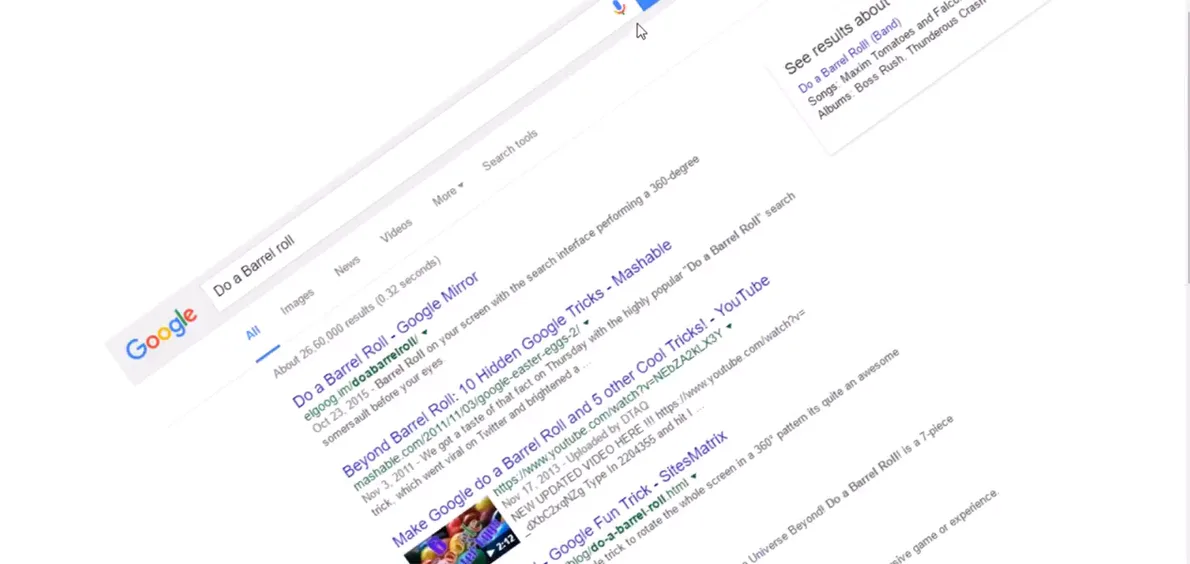
Ages 10+ Do a Barrel Roll
How: Search do a barrel roll. The entire Google results page spins 360° in a smooth rotation. Also works with z or r twice.
Why older kids love it: The immediate reaction from anyone watching over your shoulder is worth the six words it takes to type. Also works as a great introduction to browser rendering and CSS transforms.
Background story: The phrase comes from the Nintendo 64 game Star Fox 64 (1997), where the pilot Peppy Hare instructs the player to “Do a barrel roll!” It became a famous internet meme around 2011, and Google engineers coded in the Easter egg in response.
Classroom connection: Intro to web design and CSS animations. What would you have to code to make a webpage spin?
Ages 10+ Askew / Tilt
How: Search askew or tilt. The results page tilts at a slight angle.
Why older kids love it: The subtlety is part of the fun — you have to look carefully to notice it at first. Google is demonstrating the definition of the word with the page itself.
Vocabulary angle: Askew means “not in a straight or level position.” The page illustrates the definition visually. Great for vocabulary building.
Ages 10+ Zerg Rush
How: Search zerg rush. A swarm of Google O’s attacks and destroys the search results. Click on them to fight back. When all results are destroyed, the O’s arrange into “GG” (Good Game).
Why older kids love it: It is actually a mini-game. You can win or lose. The reference is to StarCraft, the legendary real-time strategy game, where “zerging” means overwhelming your opponent with sheer numbers.
Background story: The gaming term “zerg rush” entered mainstream vocabulary around 2012 and is now used beyond gaming to describe any situation where quantity overwhelms quality. Google added this Easter egg the same year the term peaked in search traffic.
Ages 10+ The Answer to Life, the Universe, and Everything
How: Search the answer to life, the universe, and everything. Google’s calculator shows the number 42.
Why older kids love it: This is a reference to The Hitchhiker’s Guide to the Galaxy by Douglas Adams (1979), in which a supercomputer named Deep Thought calculates the “ultimate answer to life, the universe, and everything” after 7.5 million years of computation. The answer is 42. No one knows what the question is.
Reading connection: The Hitchhiker’s Guide to the Galaxy is widely recommended for readers aged 12 and up. This Easter egg is a perfect gateway into the book.
Ages 10+ Blink HTML
How: Search blink html. The words “blink” and “HTML” in all search results flash on and off.
Why older kids love it: It is a history lesson hidden in a search. The <blink> tag was invented in the 1990s, used everywhere in early websites, and then removed from all browsers by 2013. Google keeps its memory alive with this animation.
STEM connection: This is a perfect entry point for exploring HTML, CSS animation, and why certain web technologies get deprecated. What does “deprecated” mean? Why do web standards change?
For Teachers
Google Easter Eggs in the Classroom
Teachers looking for quick, engaging openers for lessons in technology, science, math, or language arts have a ready-made toolkit here. These Easter eggs work especially well as five-minute warmup activities or as “hooks” for introducing a new concept.
Classroom Easter Egg Activity Ideas
| Easter Egg | Subject Area | Activity Idea |
|---|---|---|
| Flip a coin | Math / Statistics | Each student flips 20 times and records results. Compile class results. Does 50/50 emerge at scale? |
| Roll a die | Math / Probability | Roll 30 times, track each number, graph the distribution. Discuss expected vs. actual frequency. |
| Askew / Tilt | English / Vocabulary | Start a lesson on vocabulary by asking: “What does ‘askew’ mean?” Then show Google’s answer. |
| The Answer to Life (42) | Language Arts / Reading | Introduce The Hitchhiker’s Guide to the Galaxy. Discuss satire, absurdism, and why Douglas Adams chose the number 42. |
| Do a Barrel Roll | Computer Science / STEM | What CSS property makes a page rotate? Students research CSS transforms and try to write the code themselves. |
| Blink HTML | Computer Science / History | Why was the <blink> tag removed? Research HTML standards and web accessibility requirements. |
| Zerg Rush | Gaming History / Media Literacy | Trace the path from StarCraft (1998) to the term “zerg rush” entering everyday English. How do gaming words become mainstream? |
| Google Pac-Man | Media / Design History | Pac-Man was created in Japan in 1980. Why does a game that old still draw millions of players? |
Teacher tip: Google Easter eggs work on school Chromebooks and in any standard browser, including in restricted school network environments. They do not require app installation, do not request permissions, and do not collect data beyond a standard search query. Always verify your school’s acceptable use policy before using Google Search for classroom activities.
Standalone Games
Google Games: Solitaire, Minesweeper, and More
Beyond the classic Easter eggs, Google has embedded several fully functional standalone games directly into Search. These are well-suited for children who have a few minutes and want something more structured than a single visual trick.
| Search Query | Game | Best Age | Notes |
|---|---|---|---|
| solitaire | Klondike Solitaire | 8+ | Classic card game. Difficulty options: easy and hard. |
| minesweeper | Minesweeper | 10+ | Three difficulty levels. Good for logical deduction skills. |
| tic tac toe | Tic-Tac-Toe | 5+ | Play against Google AI or another player. AI has Easy / Hard modes. |
| snake game | Snake | 6+ | Multiple themes. Works well on mobile. |
| pac-man | Pac-Man | 6+ | Full arcade game. 255 levels. The “I’m Feeling Lucky” button adds Ms. Pac-Man as a second player. |
| dinosaur game | T-Rex Runner | 5+ | Endless runner. Original Chrome offline game, now online. |
For Parents
Safety Considerations: What Parents Should Know
Google Easter eggs themselves are family-friendly. The tricks described on this page do not contain violent content, inappropriate language, or external links. However, a few broader points about Google Search and children are worth understanding before handing over the keyboard.
SafeSearch: What It Does (and Does Not) Do
Google’s SafeSearch filter, when enabled, blocks explicit sexual content from appearing in search results and images. It is a useful first line of defense. However, it does not block all potentially inappropriate content — it focuses specifically on adult content and does not filter out violent content in most cases, and does not block access to websites that may contain age-inappropriate material.
To turn SafeSearch on, go to google.com/safesearch or access it through Google Search Settings. You can lock SafeSearch on Android devices using Google’s Family Link app, which prevents children from changing the setting.

Important for parents: SafeSearch is a filter, not a firewall. A child searching for an Easter egg trigger phrase will stay on the search results page, which is generally safe. The risk with children on Google is not the Easter eggs — it is what they might search for next, or which links they might follow. For younger children, supervised browsing is always the best approach.
Google Family Link
For parents of children under 13, Google Family Link (available on Android and iOS) provides a more comprehensive set of controls. Family Link lets parents approve app downloads, set screen time limits, see what sites their child is visiting, and lock SafeSearch in the permanent-on position. It does not block access to Google Easter eggs.
A Note on Google AI Overviews and Children
As of July 2026, Common Sense Media — an independent nonprofit that rates technology for families — gave Google AI Overviews an “Unacceptable Risk” rating for use by children. The concern is not with Google Search overall, but specifically with the AI-generated summary boxes that now appear at the top of many search results.
These AI Overviews can generate inaccurate information, present opinion as fact, and synthesize content in ways that may mislead users who do not already know how to evaluate sources. For adult users, this is a manageable concern. For children who are still developing information literacy skills, it is more significant.
The Easter eggs and games described in this article do not involve AI Overviews. Triggering “flip a coin,” “do a barrel roll,” or “pac-man” produces a built-in result, not an AI-generated summary. But parents supervising children on Google Search should be aware of the distinction and talk with kids about evaluating what they read in AI summary boxes.
Practical guidance: For a fully curated, child-safe search experience without AI Overviews, consider using Kiddle.co, which is a visually safe search engine powered by Google but filtered for children. It does not include AI Overviews. However, Google Easter eggs and games are not available on Kiddle — for those activities, use google.com directly with SafeSearch locked and parental supervision.
Quick Reference
Quick Easter Egg Reference: By Age Group
| Easter Egg | Search It | Ages 5–9 | Ages 10–14 | Type |
|---|---|---|---|---|
| Flip a Coin | flip a coin | ✅ Great | ✅ Good | Interactive tool |
| Roll a Die | roll a die | ✅ Great | ✅ Good | Interactive tool |
| Tic-Tac-Toe | tic tac toe | ✅ Great | ✅ Good | Game |
| Pac-Man | pac-man | ✅ Great | ✅ Good | Game |
| Dinosaur Game | dinosaur game | ✅ Great | ✅ Good | Game |
| Snake | snake game | ✅ Good | ✅ Good | Game |
| Solitaire | solitaire | 🟡 May need help | ✅ Great | Card game |
| Minesweeper | minesweeper | 🟡 May need help | ✅ Great | Logic game |
| Do a Barrel Roll | do a barrel roll | ✅ Funny | ✅ Great (story) | Visual effect |
| Askew | askew | ✅ Simple | ✅ Vocab lesson | Visual effect |
| Zerg Rush | zerg rush | 🟡 May confuse | ✅ Great | Mini-game |
| Answer to Life (42) | answer to life universe | 🟡 Abstract | ✅ Great | Knowledge Easter egg |
| Blink HTML | blink html | ✅ Visually fun | ✅ STEM lesson | Visual / history |
Explore Individual Easter Eggs in Depth
FAQ
Frequently Asked Questions
Are Google Easter eggs safe for kids?
Yes. The Easter eggs described in this article — games, visual effects, and interactive tools like Flip a Coin — are completely family-friendly. They are built into Google’s own results page and do not link to external content. They do not require sign-in, do not contain advertisements, and do not collect additional data beyond the search query itself.
What is the most fun Google Easter egg for young children?
For children aged 5 to 9, the Dinosaur Game and Flip a Coin are the most consistently popular. The Dinosaur Game (search “dinosaur game”) is an intuitive endless runner that even very young children can pick up immediately. Flip a Coin (search “flip a coin”) is visually simple, produces a clear result, and has immediate real-world uses like settling who goes first in a game.
Do Google Easter eggs work on school Chromebooks?
In most cases, yes. Google Easter eggs are part of standard Google Search and work in Chrome and Chromium browsers, including school-managed Chromebooks. School network filters might block some content, but Easter egg queries like “flip a coin,” “do a barrel roll,” and “pac-man” are very unlikely to be flagged. Always check your school’s acceptable use policy before using any Google features in a classroom setting.
How do I turn on SafeSearch for my child on Google?
Go to google.com/safesearch to access SafeSearch settings. You can toggle it on there. To lock SafeSearch so a child cannot turn it off, use Google Family Link (for children under 13) on Android or iOS. Family Link lets parents lock SafeSearch in the permanent-on position from a parent’s device.
What Google games can kids play for free without downloading anything?
Google has several fully playable free games built into Search: Pac-Man (search “pac-man”), Snake (search “snake game”), the Dinosaur Game (search “dinosaur game”), Tic-Tac-Toe (search “tic tac toe”), Solitaire (search “solitaire”), and Minesweeper (search “minesweeper”). None require a download, app install, sign-in, or payment. All work on desktop and most work on mobile.
What is the “Do a Barrel Roll” Easter egg and why do kids like it?
Searching “do a barrel roll” on Google causes the entire results page to rotate 360°. Children love it because it is dramatic, instant, and completely unexpected the first time you see it. The phrase comes from the Nintendo 64 game Star Fox 64 (1997), where a character named Peppy Hare tells the player to “do a barrel roll.” It became a major internet meme in 2011, and Google built in the Easter egg around that time.
Are there Google Easter eggs that teach kids something?
Several Easter eggs make excellent teaching tools. “Flip a coin” and “roll a die” introduce probability. “Askew” illustrates its own vocabulary definition. “The answer to life, the universe, and everything” (which returns 42) is a gateway to Douglas Adams’ writing and discussions of satire and humor in literature. “Blink html” opens a conversation about web history, HTML standards, and why technologies get deprecated. “Zerg Rush” connects gaming history to how internet terms enter mainstream language.
Is it safe for kids to use Google AI features like AI Overviews?
Common Sense Media, an independent family technology nonprofit, rated Google AI Overviews as carrying “Unacceptable Risk” for children in a July 2026 assessment. The concerns center on accuracy and the risk that children may accept AI-generated summaries as factual without critical evaluation. Google’s Easter eggs and games do not use AI Overviews — they are built-in features, not AI-generated content. For general research, parents and teachers should help children understand how to evaluate AI-generated information.
What is a kid-safe alternative to Google Search?
Kiddle.co is a popular child-safe search engine powered by Google’s technology but with visual results filtering designed for children aged 6 to 12. It does not include AI Overviews. However, Google Easter eggs and games are not available on Kiddle. For Easter eggs and built-in games, using google.com directly with SafeSearch locked on and parental supervision is the recommended approach.
Do Google Easter eggs work on tablets and phones?
Yes, most Google Easter eggs work on mobile devices including tablets and smartphones. Games like Pac-Man, Snake, Tic-Tac-Toe, and the Dinosaur Game have on-screen touch controls for mobile. Visual effects like “do a barrel roll” and “askew” also trigger on mobile. A few keyboard-based interactions work better on a desktop with a physical keyboard. All of them work in the Google app and in mobile web browsers.
Ready to Explore More?
We cover all 17 Google Easter eggs in detail — history, how-to, and what to do when they stop working.
Summary
Summary
Google’s Easter eggs are some of the most accessible, free, and genuinely delightful things a child can discover on the internet. They require no sign-up, no download, no subscription, and no parental credit card. They are built by engineers who care enough about playfulness to hide it inside the world’s most-used search engine and then leave it there for years.
The best approach for parents and teachers is simple: try a few yourself first, then let the kids loose with supervision. Start with Flip a Coin or the Dinosaur Game for the youngest children. Work up to Do a Barrel Roll and Zerg Rush for older kids. Use the classroom activity ideas to turn a moment of fun into a learning connection. And when a child asks “how does it do that?” — that question is the beginning of a conversation about how the internet actually works, which may be the most valuable outcome of all.
Sourced Sources: Common Sense Media (July 2026 AI Overviews assessment), Google Family Link product documentation, TCEA (Texas Computer Education Association) educational technology resources, CNET Google Home Easter eggs video, WIRED Google Home feature, Jeopardy! Google Easter eggs category (2023), Timeworks YouTube transcript (2021).